Welcome to the Ozone Family #
We couldn’t be more excited to have you a part of the Ozone family with your purchase of Ozone Subdivs. Take some time to explore our documentation and training portal for resources to help you understand what Subdivs are, how to use them and modeling best practices to get the most out of all your assets.
Also consider connecting with us by joining our Discord channel. There you can ask questions and get support from us, our community and get early access to Ozone products and announcements.
Looking for the full docs and official training? #
Create a free Ozone Portal account to access detailed documentation, QuickStart guides, training videos, and additional resources for getting the most out of Ozone Subdivs.
Create Your Free Ozone Portal AccountOzone Subdivs are a “Game” changer #
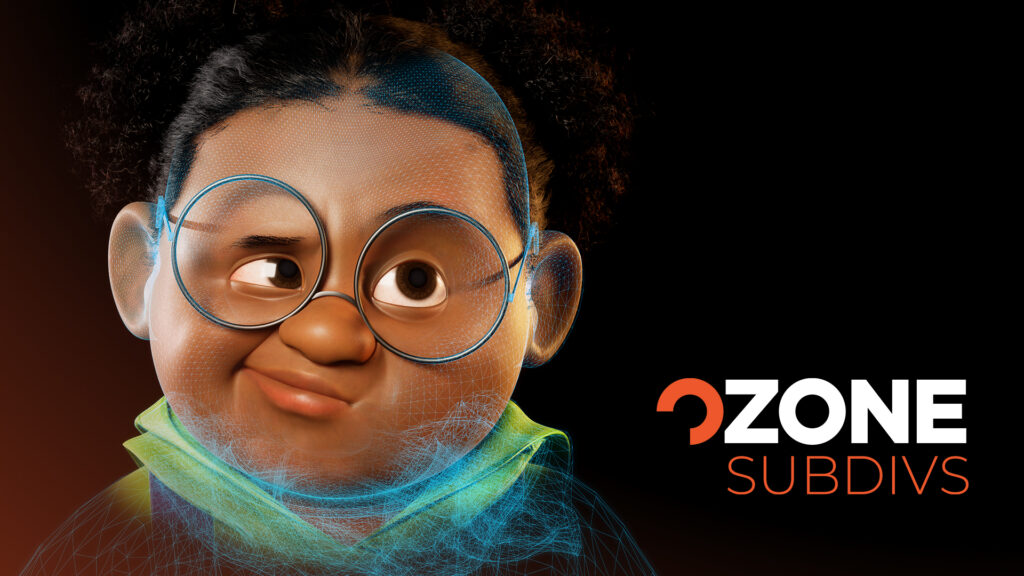
Ozone Subdivs brings film-style subdivision surfaces into real-time Unreal Engine 5.6+. Instead of baking high-res meshes down or faking smoothness with normals, you can drive true subdivision on the GPU at runtime and see the final smooth result directly in-editor and in-game.
- Work with source base meshes – Author simple, subdivision-ready quads in DCC tools like Maya and keep your base topology light and readable.
- Get film-quality smoothing in-engine – Let Ozone handle the heavy lifting on the GPU so you can animate, light, and iterate against the final smooth shapes.
- Bridge film and game pipelines – Use the same subdivision concepts you know from VFX, but tuned for real-time performance inside Unreal.
- Nondestructive – Enable Ozone Subdivs in any project without having to alter your existing assets. Use on all character or selectively only for hero characters including full LOD support with no special changes needed.
Getting Started with Ozone Subdivs #
Use this section as a map of where to go next. The child pages under this welcome page are organized to take you from installing the plugin to shipping real assets.
Install and License #
- Download the Ozone Subdiv Plugin, either through the Ozone Website or Epic’s FAB Store
- Install the Ozone Subdiv Plugin for Unreal Engine
- Create Ozone Account and download your Ozone License
Cook your first Subdiv #
- From within Unreal, import an FBX to bring in a Skeletal Mesh
- Once imported, right click on that Skeletal Mesh and choose “Cook Ozone Subdivs”
- Create a Subdiv Info Asset and hit “Cook”
- Enjoy animating your first Ozone Subdiv Asset!
For more detailed help using Ozone Subdivs check out our QuickStart Documentation and/or Training Video to see a full step by step overview of how to get started.
Learn Core Concepts #
There is more to learn so you can take full advantage of Ozone Subdivs for Unreal, from all the technical plumbing in engine to how best to approach modeling your assets and get the most out of them as Subdivs.
- Basic Subdiv Concepts for modeling and exploring the differences between Subdivs and other modeling / smoothing techniques
- Advanced Modeling Techniques for making topology choices that give better results when building your characters.
- Real World Examples that you can use as reference for your own modeling and deformation efforts.
- Troubleshooting Guide digging into some known “gotchas” to look out for an avoid when building models and deploying them as Ozone Subdivs in Unreal.


